How to Receive Visitor Notifications via Microsoft Teams [iPad Reception App Setup Guide]
Does your company run on Microsoft 365 for everything else, except visitor handling? A receptionist buzzes the intercom, tracks someone down, then has to message them again in Teams - that double handling wastes time in exactly the organizations that have already standardized on Teams. This article explains how to automate visitor notifications by integrating an iPad with Microsoft Teams, so you can handle visitors with zero dedicated reception duty.
⚠️ Microsoft Teams integration requires a paid Microsoft 365 plan
Connecting to Teams requires Microsoft 365 Business Basic, Business Standard, or Office 365 E3. It does not work with the free version of Teams.
If you'd rather start on a free plan or keep costs minimal, consider our Slack integration instead.
Problems Teams Users Face at Reception
Organizations that have standardized on Microsoft 365 route nearly all internal communication through Teams - yet visitor handling is often still stuck on intercoms and verbal messages. That mismatch causes real friction:
- Notifications never reach Teams: Visitor arrivals don't show up where staff are actually looking, so people miss them the moment they step away from their desk
- Burden falls on whoever is nearest reception: Someone has to be stationed at the front, interrupting their real work
- No record is kept: Verbal handoffs and sticky notes leave no visitor history to refer back to
iPad reception app + Microsoft Teams integration solves all of these at once.
Solution: iPad Reception App + Teams Integration
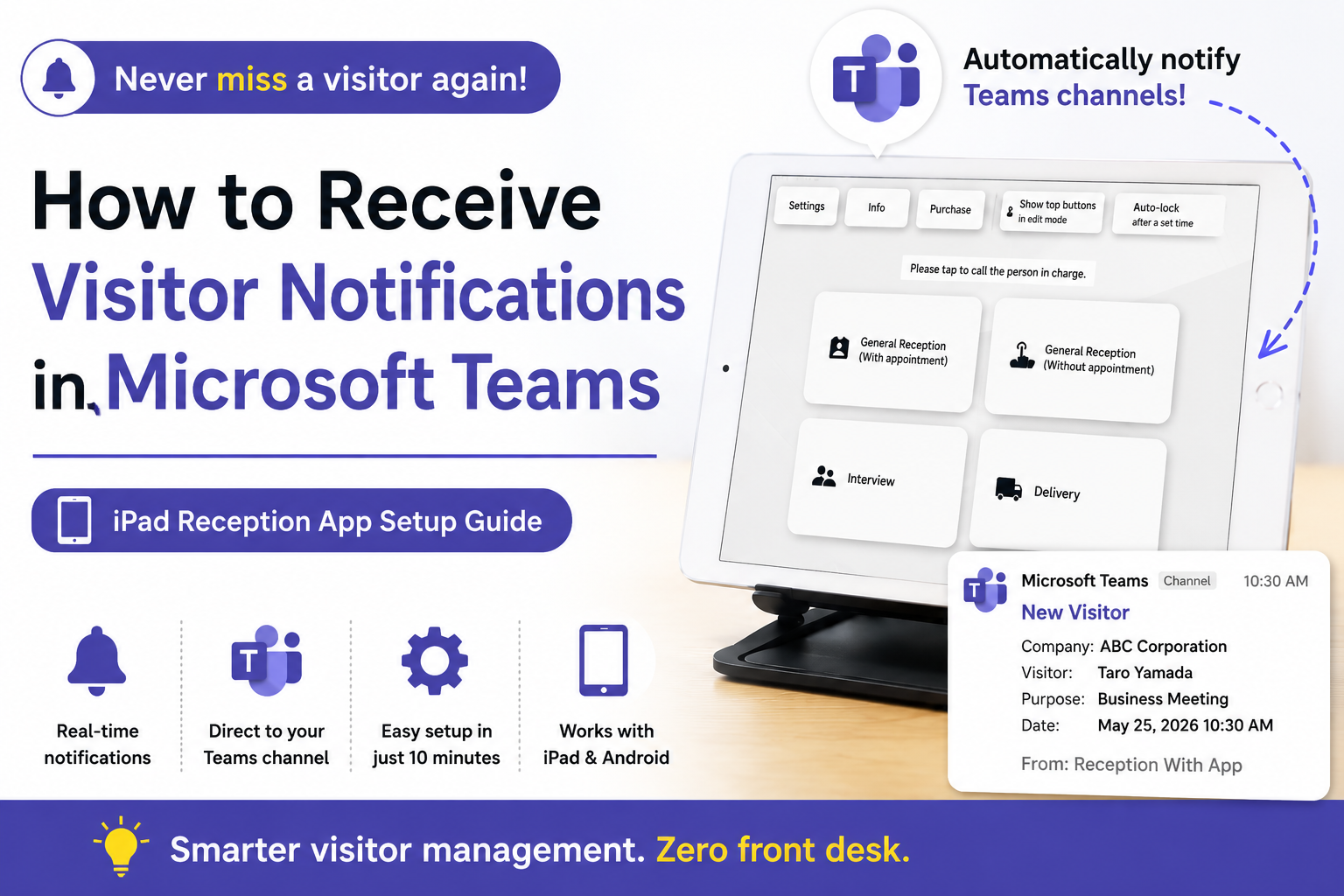
By introducing an iPad reception app, the moment a visitor selects a contact person on the iPad screen, an automatic notification is posted to the designated Teams channel. No one needs to be stationed at reception - staff simply check the Teams notification and head to the front.
How the iPad Reception App Works
- Visitor uses the iPad: At the reception iPad, the visitor taps the button for the person they want to see or their visit purpose
- Automatic Teams notification: A notification including the visitor's name, contact person, and arrival time is sent instantly to the designated channel
- Staff responds: The staff member who sees the Teams notification heads to reception
This simple flow eliminates the need for any reception duty rotation. Detailed setup options are available on our Teams integration page.
Before You Start: Teams Integration Prerequisites
Unlike Slack or Chatwork, Teams integration requires a paid Microsoft 365 plan, and you'll also need to grant admin permissions to the account used for the integration. Confirm both before you begin.
Supported Microsoft 365 Plans
- Microsoft 365 Business Basic
- Microsoft 365 Business Standard
- Office 365 E3
* The free, personal version of Teams is not supported.
Setting Up the Integration Account
To connect the app to Teams, prepare a dedicated Microsoft 365 account used solely for sending notifications, and assign it the Application Administrator or Global Administrator role.
- Sign in to the Microsoft 365 admin center
- Go to Users > Active users and select the integration account
- Go to Manage roles > Admin center access > Show all by category > set the role to Application Administrator
Once this step is complete, move on to the setup below.
Teams Integration Setup (As Fast as 10 Minutes)
The rest of the setup is done entirely within the app.
1. Install the App
Install Reception With App on your iPad or Android tablet. It costs ¥980/month (incl. tax) on the App Store and ¥960/month (incl. tax) on Google Play. After installation, the first 31 days are free.
2. Open Edit Mode
After launching the app, tap "Edit" shown at the top of the screen to enter settings mode.
3. Add Teams as a Destination
Tap "Add Destination" → "+ Add" → "Microsoft Teams (Microsoft 365 Users)" in order.
4. Select a Target Channel
Sign in with the integration account you prepared earlier, choose the channel you want to notify, and tap "Send." Back in the app, check the box and tap "Save" to complete the setup.
5. Set Up Reception Buttons and Place the Tablet
Create buttons for staff names, departments, etc., then place the tablet at reception - that's all you need to start. Setting the app to kiosk mode prevents visitors from accessing the settings screen.
Benefits of Integration
1. Works Inside the Microsoft 365 Environment You Already Have
There's no new tool to roll out. Visitor notifications arrive in the Teams channels your team already uses, making company-wide adoption smooth.
2. No More Reception Duty Rotation
Since Teams is notified automatically every time a visitor arrives, you no longer need anyone stationed at reception.
3. Low-Cost Implementation
¥980/month (incl. tax) on App Store, ¥960/month (incl. tax) on Google Play. Zero initial costs, no contracts, 30-day free trial. For a cost comparison with other services, see our reception app comparison article.
4. Automatic Visitor Log Recording
All visitor information is stored on the tablet device. It is not sent to the cloud or external servers, so you can manage visitor records while minimizing data leakage risk.
FAQ
Does it work on Teams' free plan?
No. Integrating with Microsoft Teams requires a paid Microsoft 365 plan - specifically Microsoft 365 Business Basic, Business Standard, or Office 365 E3. If you'd rather start on a free plan, consider our Slack integration or Chatwork integration instead.
Do I need admin rights to set it up?
Granting admin permissions to the integration account requires your IT administrator. Once that one-time step is complete, setting up reception buttons afterward requires no IT knowledge at all.
Can notifications be sent to multiple channels at once?
Yes. You can configure multiple channels as notification targets - for example, sending simultaneous notifications to both a "General Affairs" channel and an individual staff member's chat.
Can the notification channel be different for each staff member?
Yes, you can configure a different target channel per reception button. For example: "Sales button → Sales channel notification," "General Affairs button → General Affairs channel notification."
Can it be used on Android tablets if I don't have an iPad?
Yes, Android tablets are also supported. See our Android tablet reception setup page for details.
How do I set up Slack or Chatwork integration instead?
See our articles on How to Automate Visitor Notifications with Slack and How to Receive Visitor Notifications via Chatwork.
How to Start Your 30-Day Free Trial
Reception With App offers a 30-day free trial. No registration or inquiry required - simply install the app and you can immediately try out the Teams integration.
Start for Free Right Now
¥980/month (incl. tax) on App Store, ¥960/month (incl. tax) on Google Play
Zero initial costs, no contracts
Eliminate reception duty and put your Microsoft 365 investment to full use.