Running a Massage or Chiropractic Practice Without a Receptionist: How to Know a Client Has Arrived While You're Mid-Session
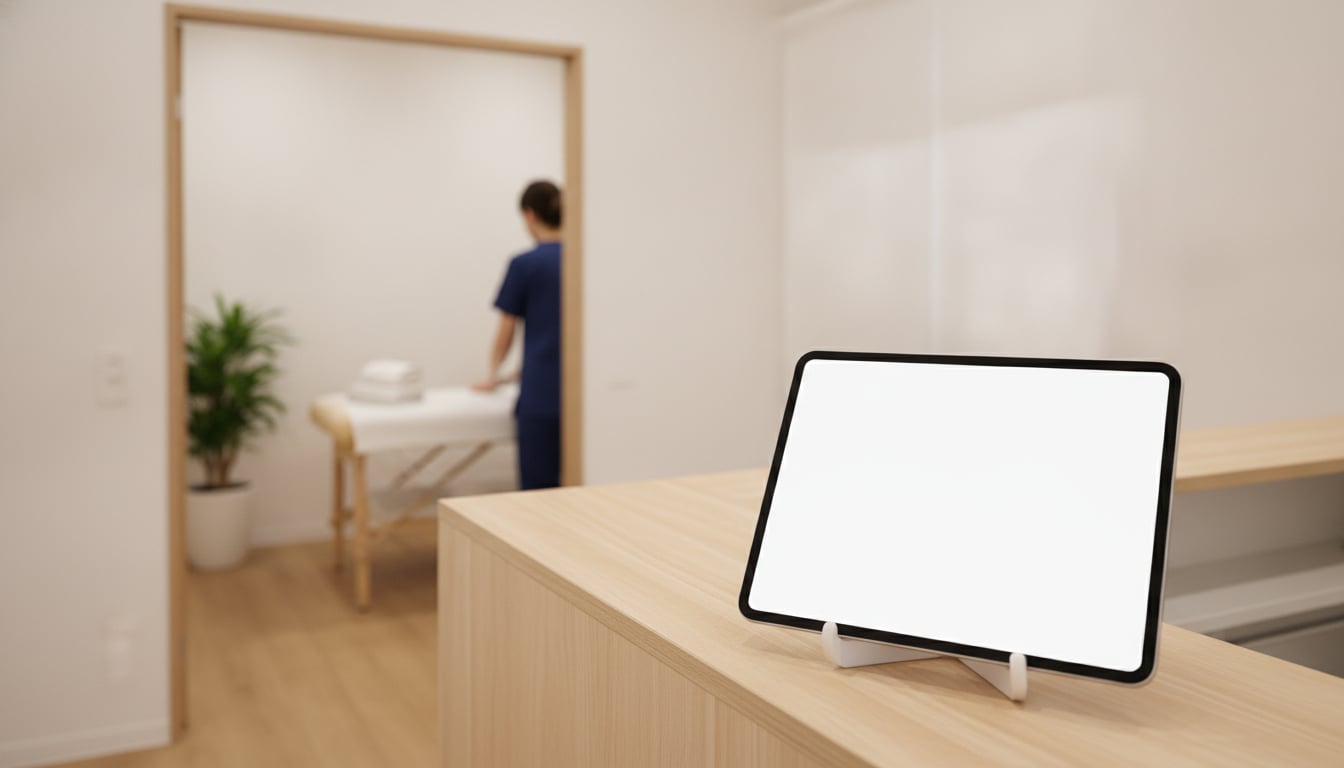
You're twenty minutes into a deep tissue session, the room is quiet, and then the door chime goes off out front. Is that your 3 o'clock showing up early? A walk-in hoping for a slot? A courier with a box of linens? If you work as a massage therapist without a receptionist, you know the choice that follows: break the flow and step out, or stay put and hope whoever it is figures out where to wait.
There's a middle ground. A tablet by the door can greet people for you and quietly let you know who's there. This guide covers three things:
- The front desk problems that come with running a solo practice
- How a tablet check-in fits into a small treatment space
- The screen setup and house rules that let you stay with the client on your table
The Front Desk Problem Every Solo Practitioner Knows
In a bigger clinic, someone at the front desk handles arrivals while the therapists work. In a one- or two-person practice, that someone is you, and you're usually in the treatment room with the door closed. A few situations come up again and again.
Your next client arrives early while you're on the table
Early arrivals are a good sign. They mean people value your time. But when the next client on your schedule walks in ten minutes before their slot, they don't know whether you've noticed. Some sit quietly. Some knock on the treatment room door. Some wander around looking for a sign. Meanwhile, you're half-listening for footsteps instead of paying full attention to the person in front of you.
Walk-ins and delivery drivers interrupt treatment
Not everyone who comes through the door has an appointment. A walk-in wants to ask about openings this week. A driver needs a signature. A neighbor from the next unit drops by with a question. Each one is reasonable on its own, but every interruption means stepping away from a client who is paying for focused, uninterrupted care.
First-time clients don't know where to wait
Returning clients know the routine: take a seat, grab some water, wait to be called. A first-timer doesn't. They see a quiet room, an empty counter and a closed door, and they're not sure if they're in the right place or if you know they're here. That uncertainty is a rough start for someone who came in to relax.
How a Tablet Check-In Works in a Small Practice
Reception With App turns an iPad or Android tablet into a simple front desk. It's a straightforward way to handle chiropractic office check-in or massage studio arrivals when nobody is out front.
To be clear about what it isn't: it's not a booking system, an intake form or a payment tool. Clients keep booking through whatever scheduler you already use. The tablet only handles the moment someone walks through the door.
The client taps a button; you get a Slack or Teams message
When a client arrives, they tap the button that fits them, such as "I have an appointment." That sends a message to Slack, Microsoft Teams or Chatwork, whichever you already use. (Teams notifications are for paid Microsoft 365 users only.) You can glance at it between sessions or during a natural pause, without leaving the room to look.
The screen tells them what happens next
After the tap, the tablet shows a response message you write yourself. Instead of wondering whether anyone noticed, the client reads something like "Thanks, please have a seat," and settles in. You can also set a custom background image, like your logo or a calm photo of your space, so the screen feels like part of the room.
No paper sign-in sheet on the counter
A clipboard sign-in sheet lets every client see who came before them. With the tablet, check-ins are saved as a log on the device itself. The app doesn't send visitor data to the cloud. If the tablet is ever lost or stolen, you can erase it remotely with Find My iPad or Find My Device.
Setting Up Your Check-In Screen for Treatment Rooms
You can add as many buttons as you want, using text or images, and the screen scrolls when there are a lot of them. For a small practice, though, fewer is better.
Keep it to three buttons
A client who just walked in should understand the screen in a second. Three buttons cover almost everyone:
- I have an appointment for regulars and anyone on today's schedule
- First visit or walk-in for new faces and people asking about openings
- Delivery for couriers and suppliers
Separating them lets you tell at a glance whether the message can wait until the session ends or whether you should plan a quick word at the next pause.
Response messages you can copy
Each button can show its own message. Here are three to start with:
- Appointment: "Thanks for coming in! I'm finishing up with a client. Please take a seat and I'll be right with you."
- First visit or walk-in: "Welcome! I'm with a client right now, but I know you're here. Have a seat and I'll come out as soon as I can."
- Delivery: "Thank you! Please leave the package on the shelf by the door. I'll collect it between sessions."
Write them the way you'd speak. A friendly, specific line does more to put a client at ease than a formal notice.
Keep health details off the screen
The check-in screen sits in a shared waiting area, so keep it simple. Don't ask clients about symptoms, injuries or anything health-related when they check in. A first name, or a name plus "appointment" or "walk-in," is all you need to know who's waiting. Save the health conversation for the treatment room.
House Rules That Let You Stay With Your Client
A solo practitioner client check-in works best when you decide a few things up front:
- Pick one channel for alerts. Send every check-in to a single Slack, Teams or Chatwork channel so you only have one place to look.
- Decide when you check. Look between sessions or during a natural pause, such as when a client turns over, not in the middle of focused work.
- Mark where clients sit. Put chairs in clear view of the tablet so the "please take a seat" message makes sense.
- Give the tablet a fixed home. Place it near the door on a stand with the charger connected, so it's always on and always ready.
- Plan for lunch breaks. Update the response message when you step out, for example "I'm on a short break and will be back at 1:00."
- Plan for closed days. If the space is unlocked when you're not seeing clients, change the message so visitors know when you'll be back.
- Review the log on a schedule. Look over the visitor log on the tablet regularly and clear out entries you no longer need.
Getting Started
- Download Reception With App from the App Store or Google Play. There's no sign-up and no credit card, and the first 30 days are free.
- Connect Slack, Teams or Chatwork: in the app, tap "Edit," then "Add destination," sign in to the tool, allow access, and choose the channel that should receive alerts.
- Set up your three buttons and write a response message for each.
- Place the tablet by the door, then walk in and check in as a client to make sure the message reaches you.
After the free trial, plans start at $9.69/month in the U.S. Pricing varies by store and country.
The Bottom Line
Your best work happens when you can give the client on your table your full attention. A tablet by the door takes over the small job of saying "I see you, please take a seat," and gives you a quiet message you can check when the moment is right. Start with three buttons and a friendly message, then adjust as you see how your clients use it.
Stay with your client and let the tablet greet the next one. Try it free for 30 days.
From $9.69/month in the U.S. after a 30-day free trial (pricing varies by store and country). No sign-up. No credit card.