Does a Visitor Check-In Kiosk Feel Cold? How to Make an Unstaffed Front Desk Feel Welcoming
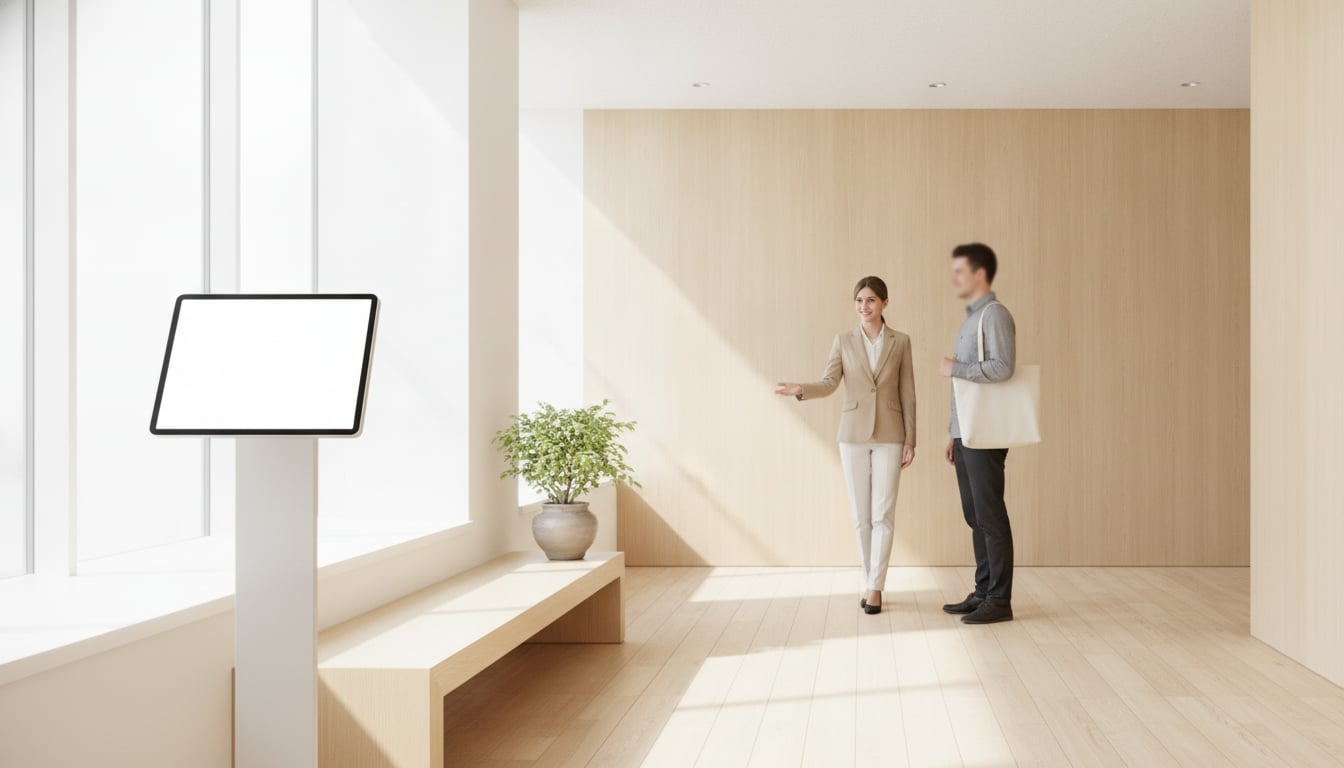
You've decided to put a tablet at the entrance instead of hiring a receptionist, or you never had one to begin with. Then the worry creeps in: will a screen make your company look cold? Will a client walk in, see a kiosk, and feel like a number?
Here's the short answer. Visitors don't mind checking themselves in. What they mind is confusion and being left to wait. An unstaffed front desk feels warm when the screen speaks like a person and someone from your team shows up quickly. This guide walks through each stage of a visit and shows you what to change.
What Makes a Self Check-In Feel Cold?
The tablet itself is rarely the problem. The cold feeling comes from three specific moments, and each one is fixable.
- Walking in and not knowing what to do. The visitor opens the door to an empty lobby. There's a tablet somewhere, but nothing tells them it's meant for them. They hover, wonder if they should call someone, and feel a little awkward before the visit has even started.
- Robotic wording on the screen. "Select department." "Input complete." Copy like this reads like a parking machine. It's accurate, but it doesn't sound like anyone is glad the visitor came.
- Checking in and then hearing nothing. The visitor taps a button, the screen goes back to the start, and the lobby stays silent. They don't know if anyone got the message. A few minutes of uncertainty feels much longer than a few minutes of waiting with a clear "we know you're here."
Notice the pattern: none of these are about the absence of a receptionist. They're about the absence of guidance and acknowledgment. A human receptionist provides both without thinking about it. With a kiosk, you have to design them in on purpose: through the lobby setup, the words on the screen, and how your team responds.
Before Check-In: Make the Lobby Say "You're Expected"
The first few seconds after a visitor walks in set the tone. Your goal is simple: they should know right away where to go and feel that the space was set up with them in mind.
Set a background that looks like your company
A plain default screen looks like equipment. A screen with your logo, or a calm photo of your office or product, looks like part of your company. Reception With App lets you set your own background image for the reception screen, so you can use your logo or a photo instead of a generic look.
Keep it simple. Skip images with lots of text, busy patterns, or small print. The background should set the mood, while the buttons and welcome message do the talking. A soft, uncluttered image also keeps the buttons easy to read from a step or two away.
Place a seat and a short sign near the tablet
A small sign next to the tablet removes the "what do I do?" moment. Something like "Welcome! Please check in here and we'll come right out" is enough. Put it where a visitor's eyes land when they walk through the door, not tucked behind a plant.
Then add a chair or two within sight of the tablet. A seat tells visitors that waiting a moment is expected and fine, so they don't have to stand around wondering. A clear sign, a place to sit, and a tidy surface do more for a welcoming reception area than any amount of decoration. If you're still deciding where the tablet should go, see our guide to visitor check-in kiosk placement.
On the Screen: Write Copy a Human Would Say
The words on the tablet are your receptionist's voice. Read every line out loud. If you wouldn't say it to someone's face, rewrite it.
A welcome message that tells visitors what to do next
A good welcome message does two jobs: it greets the visitor, and it tells them the one thing to do next. Here are three examples you can adapt.
- Corporate office: "Welcome to Northside Partners. Tap the reason for your visit and we'll let your host know you're here."
- Studio or shop: "Hi there! Thanks for stopping by. Tap below and one of us will be right with you."
- Professional practice (law, accounting, design): "Good to see you. Please tap the option that fits your visit, and we'll come out to meet you."
Keep it to one or two short sentences. Visitors glance at the screen; they don't read it like an email.
Label buttons by visitor purpose, not department names
Visitors know why they came. They often don't know your org chart. "Sales Division" or "General Affairs" makes them guess, and guessing is where confusion starts. Label buttons by what the visitor is there to do:
- "Here for a meeting"
- "Here for an interview"
- "Delivery"
- "Picking something up"
In Reception With App, buttons can use text or images, and you can add as many as you need. If there are too many to fit, the screen switches to a scrollable layout. That flexibility is useful, but try to keep three to five buttons on the first screen. Fewer choices mean faster check-ins and fewer wrong taps. For more on matching each button to the right person, read how to notify the right host when a visitor checks in.
After Check-In: Close the Gap Before the Greeting
The moment right after a visitor taps a button is where warmth is most often lost. They've done their part. Now they need to know it worked, and they need to see a person soon.
The confirmation message
You can freely set the response message visitors see after they check in. Use it to confirm, reassure, and tell them what to do while they wait. Two examples:
- "Thanks! We've let your host know. Please have a seat."
- "You're checked in. Someone from our team will come out to meet you. Make yourself comfortable."
Avoid promising an exact time like "We'll be with you in 1 minute." If your host is wrapping up a call, a missed promise feels worse than no promise. "Someone will come out to meet you" is warm and always true.
Agree on a team rule for who replies and walks out
The screen can only do so much. The real visitor check-in experience depends on how fast a person appears. Reception With App sends check-in notifications to Slack, Microsoft Teams (paid Microsoft 365 users only), or Chatwork, so the alert lands where your team already works.
Make a simple rule everyone knows:
- The first person who sees the alert replies in the thread ("On my way").
- That person walks out to greet the visitor, even if they aren't the host, and lets the host know.
- Whoever greets the visitor uses their name and offers a seat or a drink.
A quick reply in the channel stops two people from walking out at once, or nobody at all. For a full walkthrough of handling visitors from arrival to departure, see front desk visitor procedures. If alerts sometimes go unnoticed, our kiosk troubleshooting guide covers the fixes.
FAQ
Should VIP visitors use the kiosk too?
Not if you know they're coming. For key clients or important guests you're expecting, have someone wait at the door and greet them in person. The kiosk is there to catch everyone else: unexpected visitors, deliveries, and guests who arrive early. Using both together means nobody slips through and your most important visitors get a personal welcome.
Is asking for a visitor's name off-putting?
Usually not, as long as you explain why. Add one line to the screen, such as "Your name helps us let the right person know you're here." It also helps to know where that information goes: with Reception With App, visitor data is stored on the device, and the app itself does not send it to the cloud. For more detail, read our guide to visitor sign-in data privacy.
What about guests who aren't comfortable with tablets?
Add one large "Need help?" button and route it to a general contact or a shared channel that someone always watches. Guests who don't want to read through options get a single, obvious way to reach a person, and nobody feels stuck.
Wrapping Up
- Before check-in: a branded background, a short sign, and a place to sit.
- On the screen: a friendly welcome message and buttons named by visitor purpose.
- After check-in: a reassuring confirmation and a clear team rule for who walks out.
Reception With App runs on iPad and Android tablets. There's no setup cost, and you can try it free for 30 days with no signup. After the trial, plans start at $9.69/mo in the U.S. Set up your welcome message and buttons, connect your team chat, and see how your lobby feels.
Try it free for 30 days — no signup
Install on an iPad or Android tablet, customize your welcome message, buttons, and background, and get check-in alerts in Slack, Chatwork, or Microsoft Teams. From $9.69/mo in the U.S. after the trial.