Visitor Check-In Kiosk Problems (and How to Fix Them): Missed Notifications, Confused Visitors, and Tablet Hiccups
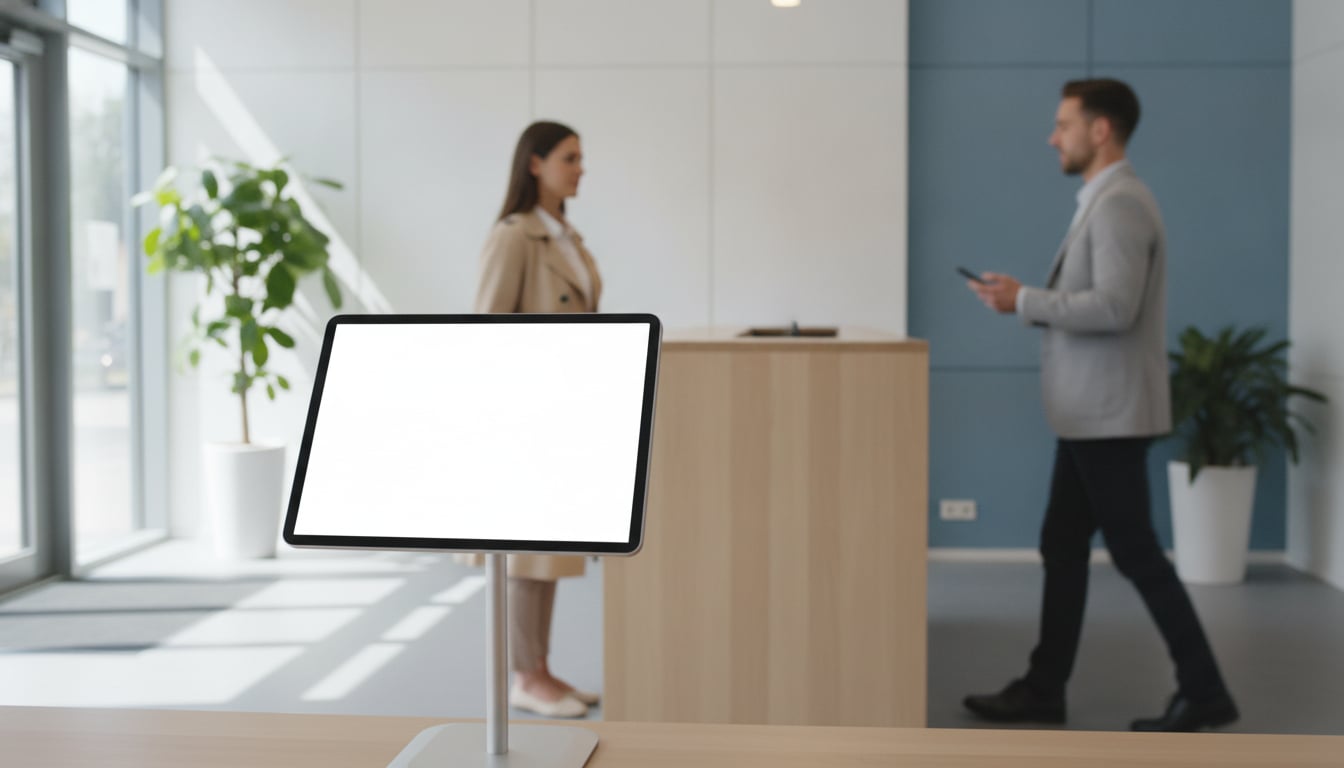
A candidate arrives ten minutes early for an interview, taps the check-in tablet, and waits. The lobby is quiet. Five minutes pass, then ten. Nobody comes. That one awkward moment is behind most visitor check-in kiosk problems, and it's rarely the tablet's fault.
An unattended front desk can work well for a small office, but only if the alert reaches someone who acts on it. This guide goes through the problems that come up most often, sorted by symptom, with a quick fix for each one.
Why Unattended Front Desks Fail: The 3 Usual Suspects
When you look closely at visitor check-in kiosk problems, almost all of them trace back to one of three places.
- The person receiving the alert. The notification goes out, but it lands somewhere nobody is watching, or with someone who can't leave their desk.
- The visitor's experience at the screen. The visitor isn't sure which button fits them, picks the wrong one, or doesn't notice the tablet at all.
- The device itself. The tablet drops off Wi-Fi, ends up on a different app, or someone changes a setting.
The good news is that each of these is a setup issue, not a reason to give up on self-service check-in. Fix the routing, the screen, and the device, and most of the drama goes away.
Problem 1: Missed Visitor Notifications
This is the big one. The check-in worked and the alert was sent, but nobody walked out to the lobby. Missed visitor notifications usually come from how alerts are routed, not from the app failing to send them.
Everyone sees the alert, so nobody goes
If every check-in goes to one busy group channel, the alert gets buried between project updates. Worse, everyone assumes someone else will handle it. A delivery driver waits at the counter while five people read "Visitor at reception" and keep typing.
Fix: Route each visit purpose to the person or team who owns it. With Slack, each check-in button can notify its own channel or DM. Send "Interview" straight to the recruiter's DM, "Delivery" to the office manager's channel, and "Client Meeting" to the account team. When an alert is clearly addressed to you, you act on it. Our guide to notifying the right host at check-in walks through how to plan this.
The host is in a meeting or offsite
Even perfect routing breaks down when the one person who gets the alert is presenting to a client or working from home that day. A DM to someone who's away is just as easy to miss as a group message.
Fix: Send alerts to a channel where a backup teammate is also watching, instead of to a single person only. Then set a short response message on the check-in screen, such as "Thanks! Someone will be with you shortly. Please have a seat." Visitors wait much more patiently when they know the check-in went through. For Slack-specific setup, see Slack reception notifications.
Problem 2: Notifications Don't Arrive at All
Sometimes the visitor taps, and nothing shows up anywhere. When that happens, work from the tablet outward instead of guessing.
A quick troubleshooting checklist
- The tablet's Wi-Fi. Check that the tablet is connected and that the network works. Lobbies are often at the edge of the office's Wi-Fi range.
- The app's notification destination settings. Make sure Slack, Chatwork, or Microsoft Teams is still connected, and that each button points to the channel you expect. If a channel was renamed or archived, or the person who connected the account left, the destination may need updating. You connect each tool by signing in and allowing access, so reconnecting only takes a minute. Note that Teams notifications are for paid Microsoft 365 users only.
- The recipient's chat-app notification settings. If the message arrives in the channel but nobody hears about it, check whether the channel is muted or phone notifications are switched off.
Fix: Run a test check-in right after setup and confirm the alert reached the right person. Repeat that test whenever staff changes, because a new hire or a departure is exactly when routing quietly goes stale.
Problem 3: Visitors Don't Know What to Tap
A visitor who hesitates at the screen is a visitor who might pick the wrong option, or skip the tablet and wander into the office looking for help.
Make the buttons speak the visitor's language
Your internal names for things ("Vendor Intake," "Ops") mean nothing to a guest. Visitors read the screen in a couple of seconds and tap whatever seems closest.
Fix: Place the tablet where it's visible from the door, so nobody has to hunt for it. Keep the number of buttons small and use plain labels like "Delivery," "Interview," and "Meeting with a staff member." Buttons can use text or images, so a simple package icon on the delivery button helps drivers who are in a hurry. You can also set a background image, such as your logo, so visitors know they're in the right place.
Problem 4: Tablet Hiccups and Security Worries
A tablet in a public lobby gets poked by curious visitors and, now and then, by curious kids. Plan for that up front.
Visitors open other apps or change settings
If someone swipes out of the check-in app, the next visitor walks up to a home screen and has no idea what to do.
Fix: Use Guided Access on iPad or Screen Pinning on Android to keep the check-in app on screen. Visitors can tap buttons, but they can't leave the app or open settings. Step-by-step guides: iPad kiosk mode for visitor check-in and turning an Android tablet into a check-in kiosk.
What if the tablet is lost or stolen?
It's a fair question for any device that sits in a lobby. With Reception With App, visitor data is stored only on the device and isn't sent to the cloud or to external servers.
Fix: Make sure Find My iPad (or Find My Device on Android) is turned on before the tablet goes out to the lobby. If the device goes missing, you can remote-erase it and wipe the data stored on it.
Quick Checklist Before You Go Unattended
- Write a simple routing table: each visit purpose, and who gets the alert.
- Add a backup recipient, such as a shared channel a teammate also watches.
- Run a test check-in for every button, and again whenever staff changes.
- Turn on kiosk mode (Guided Access or Screen Pinning).
- Check the tablet's placement: visible from the door, within Wi-Fi range, and easy to reach.
The Bottom Line
Most visitor check-in problems don't come from going unattended. They come from routing and setup. Send each alert to someone who owns it, add a backup, keep the screen simple, and lock the tablet to the app. Do that, and an unattended front desk stops feeling risky.
The easiest way to find out is to try it at your own entrance. Reception With App has a 30-day free trial with no signup, and plans start at $9.69/mo in the U.S. after that.
Try It Free for 30 Days, No Signup
Install on an iPad or Android tablet, connect Slack, Chatwork, or Microsoft Teams, and route each check-in to the right person. From $9.69/mo in the U.S. after the trial.