How to Notify the Right Host When a Visitor Arrives (Without a Receptionist)
A job candidate walks into your lobby ten minutes early. Nobody is at the front desk, the person they're meeting is on a call two floors up, and the colleague nearest the door has no idea who "Sam from Operations" is. So the candidate waits, a little less impressed with every minute. If you've ever wondered how to notify the host when a visitor arrives without hiring a receptionist, the answer can be surprisingly small: one tablet at the entrance, a handful of well-labelled buttons, and chat alerts that land with the right person or team. This guide walks through how to design those buttons, how to route the alerts, and a few example setups you can copy.
Why "Who Are You Here to See?" Breaks Down in Hybrid Offices
The traditional front desk worked because one person knew everyone and could pick up a phone. Most small offices no longer have that person, and the way people work has changed around the gap.
Hosts aren't at their desks anymore
In a hybrid office, the person a visitor came to see might be in a meeting room, working from the kitchen, or only in on Tuesdays. Desk phones ring out, and nobody is walking past to notice a guest. The one place hosts reliably are is their chat app, usually on their phone as well as their laptop.
Whoever sits nearest becomes the accidental receptionist
Without a system, the job falls to whoever sits closest to the door. They sign for couriers, look up names, and knock on meeting-room doors, all while trying to do their own work. It's a hidden cost that rarely shows up anywhere, and it tends to land on the same one or two people every week. Visitors notice the confusion too, and a slow, awkward welcome is not the first impression you want a client or candidate to take away.
How Host Notification Works on an iPad Check-In Kiosk
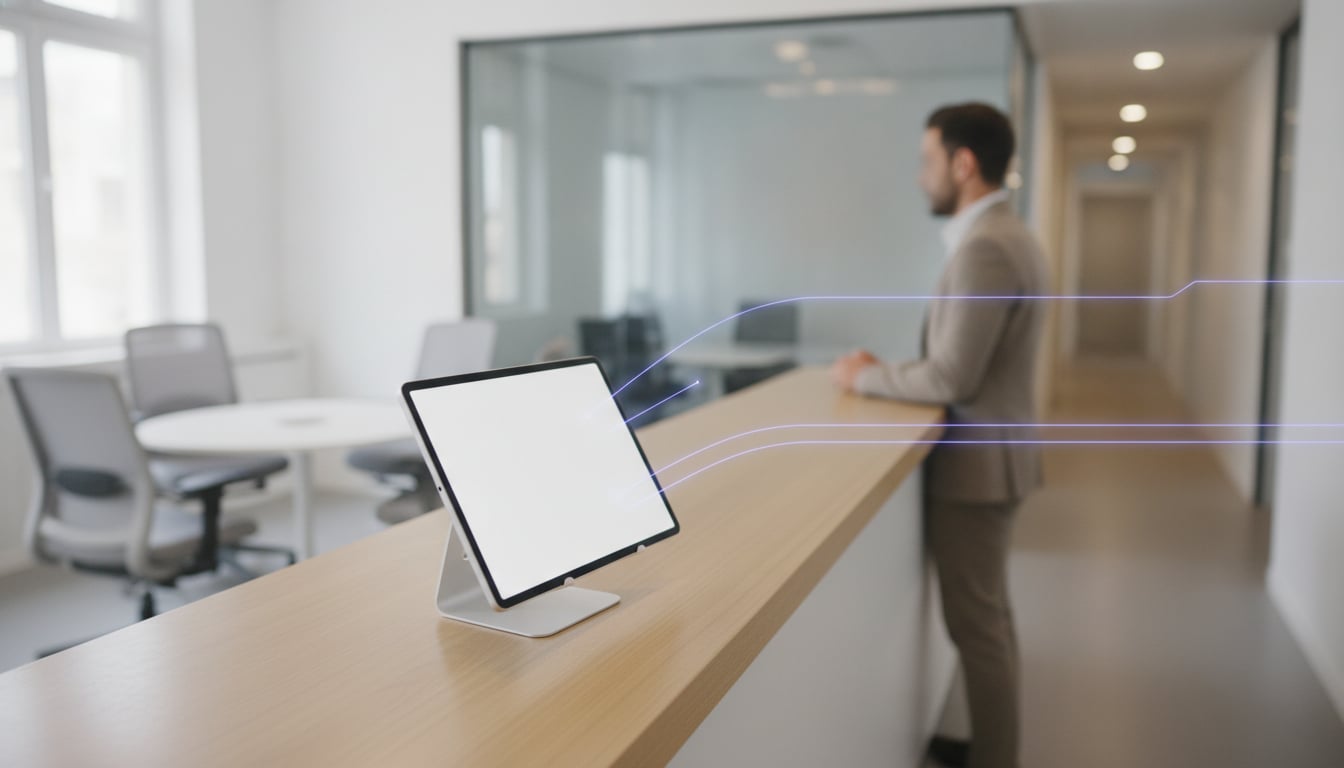
With Reception With App, an iPad or Android tablet at the entrance becomes a self-service check-in point. Instead of a receptionist, it shows a greeting and a set of buttons. The flow is simple:
- The visitor taps a button such as "Interview", "Delivery" or "Sales team".
- An alert goes out instantly to the Slack channel, Slack DM or Microsoft Teams channel linked to that button.
- The host sees it on their phone or laptop and walks out to greet the visitor.
That's the whole process for the visitor: one tap, no typing, no hunting for a name in a directory. Because each button can send to a different destination, you decide in advance who hears about which kind of arrival. This is the core of how to notify the host when a visitor arrives: the routing lives in the buttons, not in someone's head.
Setup doesn't require IT expertise. In the app, open "Edit", choose "Add destination", log in to Slack or Teams and allow access, then pick the channel that should receive the alerts. Chatwork is supported the same way if your team uses it.
Routing Alerts by Team in Slack and Microsoft Teams
A visitor check-in app with host notification is most useful when each alert reaches a small, relevant group rather than the whole company. There are two common approaches.
Channel per team
Create a channel such as #visitors-sales or #reception-deliveries and link each button to the matching channel. Everyone on that team sees the alert, so if the host is busy, a teammate can step out instead. This is the most resilient option and works in both Slack and Microsoft Teams. See our Slack reception notification guide and Microsoft Teams reception notification guide for setup details.
DM per host
In Slack, alerts can also go straight to a person's DMs. This fits roles where visitors almost always come for one individual, such as a hiring manager or an office manager who handles deliveries. Keep in mind that a DM only reaches one person, so pair it with a team channel for anything time-sensitive.
Note that Microsoft Teams integration is available for paid Microsoft 365 users only. You can also send one button to several destinations at once if a team splits its work across tools.
Example Button Setups
Here are starting points for a few common workplaces. Adjust the labels to match how your visitors describe their own reasons for coming in.
| Workplace | Buttons | Where alerts go |
|---|---|---|
| Small office | Meeting / Interview / Delivery / General inquiries | Meeting and Interview to the hosting team's channel, Delivery to the office manager's DM, General to a shared channel |
| Dental or medical clinic | Appointment / New patient / Supplier / Other | Patient buttons to the front-desk channel, Supplier to the practice manager (clinic guide) |
| Coworking space | Member guest / Tour / Delivery / Community team | Tours to the community channel, Delivery to the operations channel (coworking guide) |
| Real estate office | Viewing appointment / Rentals / Sales / General inquiries | Each button to the matching agent team's channel (real estate guide) |
FAQ
How many buttons can I add?
There is no limit. When you add more buttons than fit on one screen, the check-in screen switches to a scrolling layout automatically. For visitors, though, a visitor check-in app with host notification works best with five to seven clear choices.
What if the host is away from their desk?
Alerts arrive in Slack, Microsoft Teams or Chatwork, so the host sees them on their phone through the chat app as long as notifications are turned on. Routing each button to a team channel also means a teammate can step in when the host can't.
Where is visitor data stored?
Visitor logs are stored on the tablet itself and are never sent to the cloud or external servers. Saving, deleting and exporting all happen inside the app.
Wrap-Up: Get Every Visitor to the Right Person
You don't need a receptionist to notify the host when a visitor arrives. A tablet with clear buttons, sorted by either purpose or team, plus alerts routed to the right Slack or Teams channel, gets every candidate, client and courier to the right person in seconds. Start with five to seven buttons and a "General inquiries" safety net, then refine the labels as you see how visitors use them.
It works with a single tablet, costs $0 to set up, and you can try everything free for 30 days, with no sign-up and no sales calls.
Start for Free Right Now
$9.69/month on the App Store (Google Play pricing varies by region)
Zero initial costs, no contracts, 30 days free