How to Turn an Android Tablet into a Visitor Check-In Kiosk (Without Expensive Hardware)
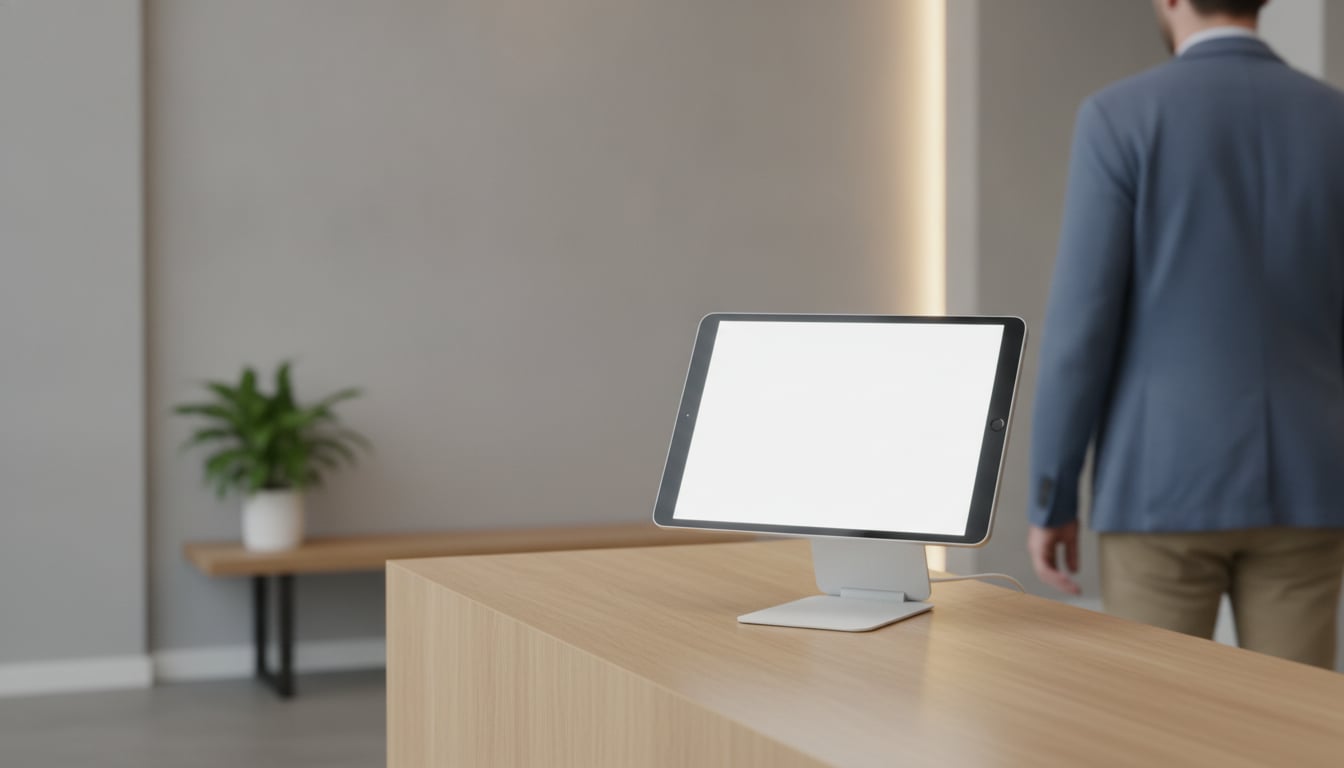
Someone walks into your office and finds an empty front desk. They hover, look around, and finally knock on the nearest door, pulling a teammate away from work to ask who they are here to see. It happens a few times a day, and every time it costs a visitor some patience and your team some focus.
The usual fix is a visitor management system, but many are priced and built for corporate campuses, not a ten-person office or a small studio. There is a simpler route. An Android tablet visitor check-in app turns a budget tablet, or one already sitting in a drawer, into a self-service kiosk. Visitors tap a button, the right person gets an alert, and nobody has to staff the desk.
What You Need to Build an Android Check-In Kiosk
Before you install an Android tablet visitor check-in app, gather a few basics. You probably have most of them already.
- An Android tablet. A spare one is fine, as long as it can install apps from Google Play.
- A stand or wall mount. Something that holds the screen at a comfortable angle for someone standing.
- Power. An outlet within reach of the desk and a cable long enough to keep the tablet charging all day.
- Wi-Fi. The tablet needs a connection to send arrival alerts.
- A Slack or Microsoft Teams workspace. This is where your team will see who has arrived. Teams requires a paid Microsoft 365 plan.
- Reception With App. Free to download from Google Play, with no account to create.
Why Android Tablets Make Sense for Visitor Check-In
A check-in kiosk has one job: show a few buttons and stay on all day. That does not require top-tier hardware, which is where Android shines.
Lower hardware cost than an iPad-based setup
Entry-level Android tablets are typically cheaper than the most affordable iPad. For a device that will only ever run one app, the savings go straight back into your budget, and they add up quickly if you need a tablet at more than one entrance.
Reuse a spare tablet you already own
Many offices have an older Android tablet left over from a past project or an employee upgrade. Give it a factory reset, install the app, and it has a useful second life instead of collecting dust.
More choice of screen sizes and stands
Android tablets come in a wide range of sizes from many manufacturers, so it is easier to find one that fits a narrow reception counter or a large lobby wall. Generic stands and enclosures are easy to find, too.
That said, if your team already manages iPads or you prefer Apple's built-in Guided Access, an iPad may be the smoother fit. Our iPad kiosk mode guide walks through that setup.
Choosing the Right Tablet for Your Lobby
You do not need a specific brand or model. Instead, check the tablet against these points:
- Screen size of 8 to 11 inches. Smaller screens make buttons hard to read from standing height. Larger ones get heavy and harder to mount.
- A recent, supported Android version. Open Google Play on the tablet and look up Reception With App. If the install button appears, you are good to go. Newer versions also keep receiving security updates.
- Able to stay plugged in. The tablet will run on the charger for hours a day, so pick one that handles constant charging well and has a charging port that a stand will not block.
- Mounting and anti-theft options. In a public lobby, a locking enclosure or a stand with a security cable is worth the small extra cost.
If you are reusing an older tablet, test that the battery still holds a charge and the touchscreen responds reliably across the whole screen.
Setting Up the Visitor Check-In App, Step by Step
Most people finish these four steps in about 10 minutes. No IT background needed.
Step 1 – Install Reception With App from Google Play (no sign-up)
Open Google Play on the tablet, search for Reception With App, and install it. There is no account to create, no form to fill out, and no sales call to book. Your 30-day free trial starts right away.
Step 2 – Connect Slack or Microsoft Teams for arrival alerts
In the app, tap "Edit," then "Add destination." Sign in to Slack or Microsoft Teams, approve access, and pick the channel that should receive arrival alerts. That is it. There are no technical settings to copy and paste. Chatwork is supported the same way if your team uses it.
For tips on channel setup, see our guides to Slack reception notifications and Microsoft Teams reception notifications. Remember that Teams requires a paid Microsoft 365 plan.
Step 3 – Customize your check-in buttons and welcome screen
Create one button for each reason someone might visit, like "Meeting," "Delivery," or "Interview," or one per staff member. Buttons can show text or images, so staff photos work well for helping visitors find the right person. Then add a background image, such as your logo or office photo, so the screen feels like part of your space.
Step 4 – Mount the tablet at your front desk
Place the tablet where visitors see it as soon as they walk in, at roughly chest height. Plug it in, then tap a button yourself to confirm the alert shows up in your channel.
Lock It Down with Android Kiosk Mode (Screen Pinning)
A kiosk only works if visitors cannot wander off into other apps. Android has a built-in feature for this called app pinning (sometimes called screen pinning). It is the simplest way to get Android kiosk mode check-in without buying extra software.
- Open Settings, go to Security, and turn on App pinning. If your tablet offers it, also turn on the option to ask for a PIN before unpinning.
- Open Reception With App so the check-in screen is showing.
- Open Recent apps, tap the app's icon at the top of its preview, and choose Pin.
Menu names and locations vary by manufacturer and Android version. On some tablets the setting sits under "Biometrics and security" or "Advanced settings." If you cannot find it, search "pin" in the Settings search bar.
Once pinned, the home and back buttons will not take anyone out of the app. Only someone who knows the unpin gesture and your PIN can leave, which keeps your Android kiosk mode check-in screen in place all day.
What It Costs Compared with a Full Visitor Management System
Many enterprise visitor management systems are priced per location, often with annual contracts, onboarding fees, and a demo call before you even see the price. That makes sense for a corporate headquarters, but it is a lot for a small office that just needs to know when someone walks in.
A cheap visitor management tablet setup is far more predictable. Your costs are:
- The tablet, or nothing at all if you reuse one
- A low monthly subscription (see the Google Play listing for your local price)
- No setup fee, no contract, and you can cancel anytime
For a side-by-side look at how check-in apps differ, read our reception app comparison. For most small teams, affordable visitor management simply means a tablet and an app you can try free for 30 days.
Keeping Visitor Data Private
Visitor logs are stored on the tablet itself. They are never uploaded to the cloud, so your visitor history does not sit on someone else's server.
If a tablet is ever lost or stolen, you can erase it remotely with Google's Find My Device. Set that up with your Google account before you mount the tablet, so it is ready if you ever need it. For more ways to run a front desk without staff, see our unmanned reception guide.
FAQ
Will it run on an older Android tablet?
Often, yes. Check the Google Play listing on the tablet itself: if the install button is available, the device meets the requirements. If Google Play says the app is not compatible, the tablet's Android version is too old and a newer budget tablet is the better option.
Can I mix Android tablets and iPads?
Yes. The app runs on both, so you can put an Android tablet at one entrance and an iPad at another. Each tablet sends arrival alerts to the Slack or Teams channels you choose for it.
What happens after the free trial?
After 30 days, the trial rolls into a low monthly subscription billed through Google Play or the App Store. There is no contract and no setup fee, and you can cancel anytime from your store account. If you cancel during the trial, you are not charged.
Get Your Android Check-In Kiosk Running Today
You do not need an enterprise system to stop visitors from waiting at an empty desk. With an Android tablet visitor check-in app, a stand, and app pinning turned on, you can have a working kiosk in about 10 minutes. Visitors check themselves in, your team gets an alert in Slack or Teams, and the log stays on the device.
Turn Your Tablet into a Check-In Kiosk Today
No sign-up. Free for 30 days.