Where to Place a Visitor Check-In Kiosk: Tablet Stand, Power and Wi-Fi Setup Checklist
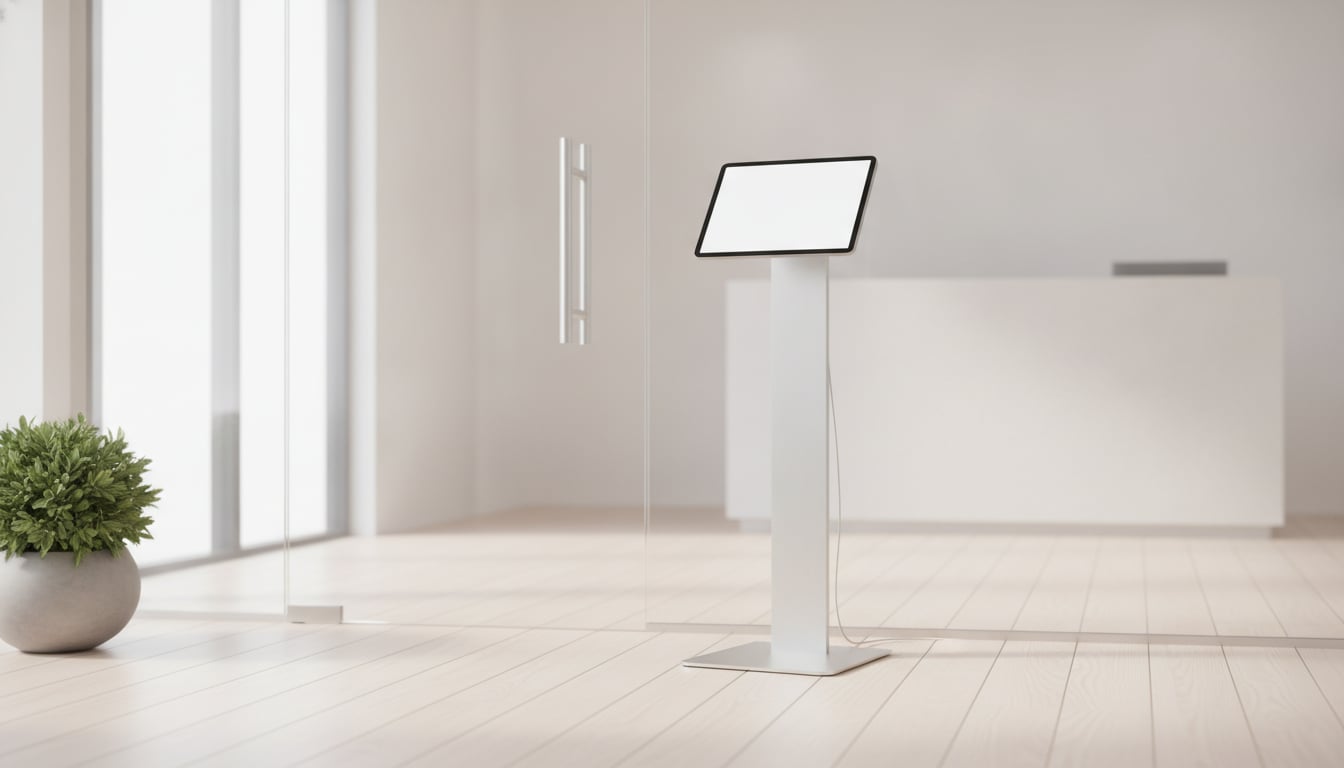
An unattended front desk only works if visitors notice the kiosk and know how to use it. If someone walks in, looks around, and can't spot the tablet, they'll knock on the nearest office door. Then the self-service setup isn't saving anyone time. That's why a good visitor check-in kiosk setup starts before you install any app.
In this guide, we'll go through the five decisions to make before day one: location, stand, power, Wi-Fi and kiosk mode. We'll start with the question most people ask first: where to place a check-in kiosk so visitors actually use it. You'll finish with a placement plan and a short pre-launch checklist.
Where to Place a Check-In Kiosk
Location matters more than anything else in your setup. A great app in a bad spot still gets ignored. Here are three simple rules.
Put it in the visitor's line of sight
Picture someone walking through your front door for the first time. Where do their eyes go? That's where the kiosk belongs. Ideally, visitors see it right inside the entrance, without turning a corner or walking past desks to find it.
Even a well-placed tablet is easy to miss if nobody expects it. A simple sign like "Please check in here" next to the kiosk, or on the door, tells visitors what to do before they start looking for a person.
Avoid glare, direct sunlight and foot traffic
Lobbies often have big windows, and sunlight on a glossy screen can make it hard to read. Before you settle on a spot, look at the screen at different times of day. Watch for glare from windows and overhead lights.
Also think about how people move through the space. If the kiosk sits in a narrow walkway or right next to a door that swings open, visitors will feel rushed and staff will bump into them. Pick a spot where someone can stand for a moment without blocking anyone.
Angle the screen away from desks and the waiting area
Visitors may type their name or company on the screen. Angle the tablet so people sitting in the waiting area, or staff at nearby desks, can't easily read over their shoulder. It's a small step, and it shows visitors you take their privacy seriously.
Choosing a Reception Tablet Stand
Once you know where the kiosk goes, the next step is picking what holds it. A good reception tablet stand keeps the screen at a comfortable height and angle, holds the tablet steady when people tap it, and looks neat enough for your entrance.
Floor, countertop or wall mount: which fits your lobby?
Start with two questions: do you have a front desk or counter, and how much open space is there by the entrance?
- Countertop stand: A good fit if you already have a reception counter. The tablet sits where a receptionist would normally greet people.
- Floor stand: Works well when there's no desk, or when you want the kiosk to stand out as soon as people walk in. It does need some open floor space.
- Wall mount: Handy for small or narrow entrances where a floor stand would get in the way. Make sure the wall is visible from the door.
Security: prevent tipping and theft
A tablet in a public lobby will get bumped, leaned on, and now and then poked by curious kids. Choose a stand that feels stable and won't tip if someone knocks into it. For extra peace of mind, look for a lockable enclosure that holds the tablet in place, or attach a cable lock to something solid.
Also plan for the worst case. Turn on Find My iPad (or Find My Device on Android) before the tablet goes out to the lobby. If the device goes missing, you can remotely wipe it.
Power and Wi-Fi: Keep the Kiosk Always On
A kiosk with a dead battery is just a dark rectangle. Keep the tablet plugged in so it's ready whenever someone walks in, and plan the power route before you pick the final spot.
Think about where the cable runs. A charging cord stretched across a walkway is a tripping hazard and gets yanked out easily. Run cables along walls or through the stand where you can, and keep them out of the path visitors walk.
Wi-Fi is the other half of "always on." Entrances are often at the edge of an office's Wi-Fi range. Instead of assuming the signal is fine, test it at the exact spot where the tablet will sit. A weak signal is one of the first things to check when visitor alerts don't arrive, so it's worth confirming before launch rather than after a visitor has been left waiting.
Lock the Tablet to Your Check-In App
"Kiosk mode" simply means locking a tablet so it shows one app and visitors can't wander into other apps or settings. Without it, one curious swipe can leave the next visitor staring at a home screen.
On iPad: Guided Access temporarily restricts the device to a single app. Our guide to iPad kiosk mode for visitor check-in walks through it step by step.
On Android: Screen pinning keeps an app's screen in view until you unpin it. See turning an Android tablet into a check-in kiosk for the setup.
Pre-Launch Checklist for Your Visitor Check-In Kiosk
Before your visitor check-in kiosk setup goes live, walk in through the front door as if you were a visitor and check each item:
- Is the kiosk visible from the door, with a "Please check in here" sign?
- Is the screen easy to read, without glare from windows or lights?
- Is the screen angled away from desks and the waiting area?
- Is the stand stable, and is the tablet secured against tipping and theft?
- Does a test check-in reach the right person in Slack, Chatwork or Microsoft Teams?
- Is the Wi-Fi stable at the exact spot where the tablet sits?
- Is the tablet plugged in and charging, with the cable out of the walkway?
- Is the screen locked to the check-in app with Guided Access or screen pinning?
- Is Find My iPad or Find My Device turned on?
Wrapping Up
A smooth visitor check-in kiosk setup comes down to five decisions: put the kiosk where visitors see it right away, pick a stand that fits your entrance and stays put, keep it powered, confirm the Wi-Fi at that exact spot, and lock the screen to your check-in app. Get those right, and your unattended front desk will feel natural to visitors from the first day.
If you're still choosing an app, Reception With App runs on both iPad and Android tablets, and a tablet plus a stand is all you need to start. Visitor alerts go to Slack, Chatwork or Microsoft Teams (Teams requires a paid Microsoft 365 plan; the free version isn't supported), and visitor data stays on the device instead of being sent to the cloud. It's free for 30 days.
Try It Free for 30 Days
Free for 30 days, from $9.69/mo after that (U.S.). No sign-up or sales call needed.