Nursing Home Visitor Sign-In Made Simple: A Tablet Check-In System for Care Homes and Assisted Living
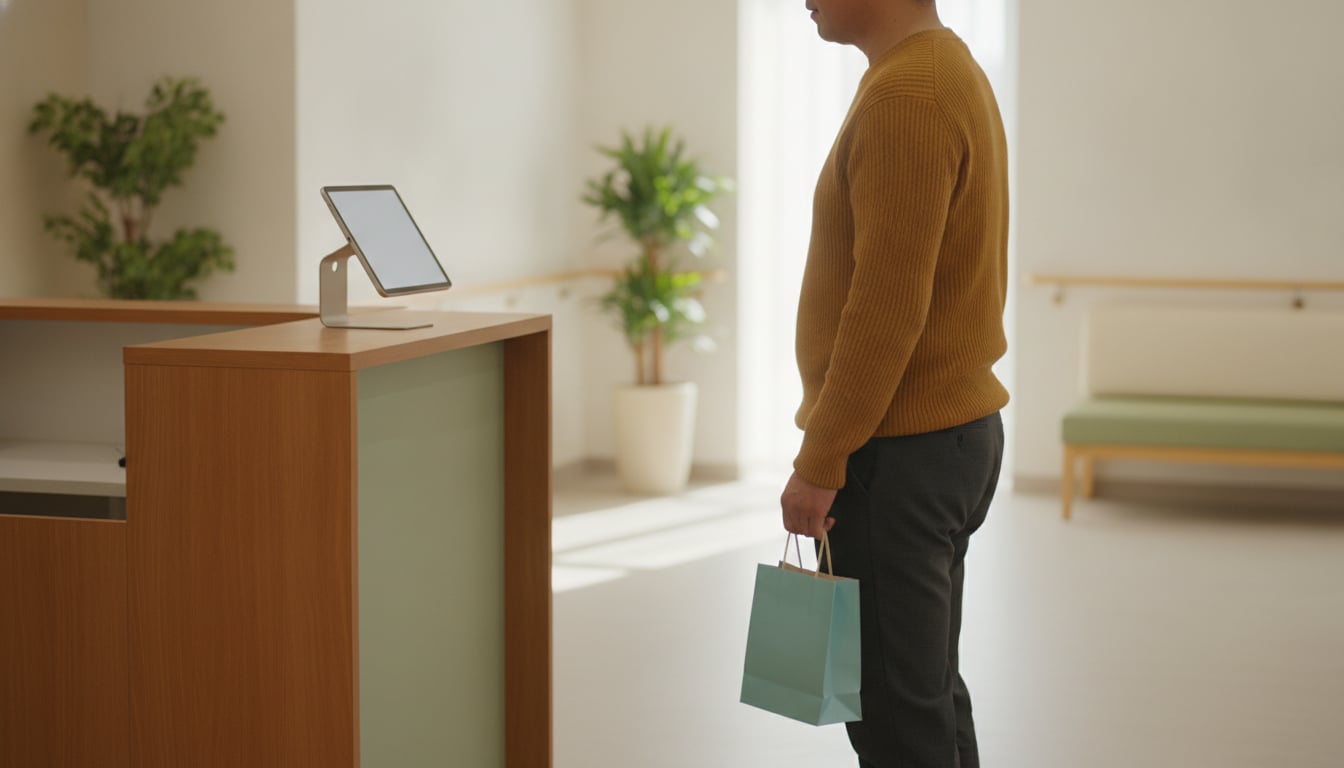
If your nursing home visitor sign in still means a clipboard and a pen, you already know this scene. It's Sunday afternoon. A daughter comes in to see her mom, and the front desk is empty. She rings the bell. Nobody comes. After a few minutes she heads down the hall, peeking into rooms and asking anyone in scrubs where she should go.
Nobody did anything wrong here. Your caregivers are busy with residents, and the front office can't be staffed every hour of every day. A simple assisted living visitor check-in on a tablet fills the gap. This guide covers three things:
- Why the front desk is so hard to cover in a care home
- How a tablet at the entrance alerts the right unit or wing in Slack, Teams or Chatwork
- What to decide before you go live, and how to set it up in about 10 minutes
Why Visitor Sign-In Is Hard at Nursing Homes
A good nursing home visitor sign in process has two jobs. It should tell staff that someone is here, and it should leave a record of who came. The clipboard by the door does the second job poorly and the first one not at all.
The front desk is often empty on evenings and weekends
Many communities staff the front office during weekday business hours and leave it empty the rest of the time. That's exactly when families tend to visit: after work, on Saturday mornings, and on Sunday afternoons. Even on weekdays, the person at the desk is also answering phones, helping with admissions paperwork, and stepping away to help a resident. Every time they leave, the entrance has nobody watching it.
Families end up searching the halls for a caregiver
When nobody answers, visitors do the natural thing and go looking for help. A son walks into the wrong wing. A grandchild interrupts a nurse during a med pass. A delivery driver leaves a box of supplies by the door because they couldn't find anyone to sign for it. None of these are emergencies, but each one pulls staff away from residents and leaves the visitor feeling unsure and unwelcome.
A clipboard sign-in sheet shows every previous visitor's name
A paper sign-in sheet is open for anyone to read. The next visitor can see who came before them, which resident they saw, and what time they arrived. Families may not love having that out on the counter. Paper sheets also get lost, filled in with handwriting nobody can read, and stuffed into a drawer when the page runs out. And the sheet never tells anyone that a person is standing in the lobby waiting.
How a Tablet Check-In Kiosk Works in a Care Home
With Reception With App, an assisted living visitor check-in takes one tap. You put an iPad or Android tablet at the entrance. Visitors choose why they're here, the right staff get an alert, and the screen tells the visitor what happens next. No badge printer, no enterprise contract, no sales call.
The app does three things: it notifies staff, shows a message to the visitor, and keeps a visit log on the tablet. It doesn't screen visitors, check IDs or enforce visiting rules. Those stay with your policies and your team.
Separate buttons for family visits, deliveries and vendors, and tours
Set up one button for each kind of visitor you see. Buttons can show text or an image, and there's no limit on how many you add. If you have a lot of them, the screen scrolls. Each button can send its alert to a different place, so a family visit, a pharmacy delivery and a tour inquiry don't all land with the same person.
Keep the labels short and friendly. An older visitor or a hurried driver should be able to read the screen at a glance and know which button to tap.
Send alerts to the right unit or wing in Slack, Teams or Chatwork
Each tap sends an alert to Slack, Microsoft Teams or Chatwork, whichever your team already uses. A simple setup is one channel per wing or unit. For example, "Family visit: North Wing" goes to the North Wing channel, "Family visit: Memory Care" goes to the Memory Care channel, and "Delivery / Vendor" goes to the front office channel. Staff on the floor can see the alert on their phones, so nobody has to walk back to a desk to find out someone is waiting.
Teams requires a paid Microsoft 365 account. Slack and Chatwork work on their free plans.
Greet visitors with a custom message
After a visitor taps a button, the screen shows a reply message that you write. Something like "Thanks for visiting. A team member is on the way. Please have a seat." tells families they've been heard and keeps them in the lobby instead of the hallway. You can also set a custom background image, such as your community's logo, so the tablet looks like part of your front entrance.
Keep visit logs on the tablet, not on paper
Every check-in is saved as a log on the tablet itself. The app doesn't send visitor data to the cloud or an outside server. You can review past check-ins as a visitor list, and you can export or delete the logs from inside the app.
Because the log lives on the tablet, nobody standing at the counter can flip back through earlier entries the way they can with a clipboard. If the tablet is ever lost or stolen, you can wipe it remotely with Find My iPad or Google's Find My Device. Turn that on before you set the tablet out.
What to Decide Before You Go Live
Good care home visitor management is mostly about a few decisions made up front. Talk these through with your administrator and front-office lead before the tablet goes out:
- Which buttons to show. A common starting set is Family visit, Delivery, Vendor, and Tour or inquiry. Add a button per unit or wing if families usually know where their loved one lives.
- Who gets notified for each button. Decide which channel each button sends to: a unit, a wing or the front office. Make sure someone actually watches each channel on every shift.
- The after-hours message. Write a reply message that works when the office is closed, so evening and weekend visitors know someone has been alerted and where to wait.
- Where visiting policies live. Your visiting hours and rules stay with your posted signs and your staff. The tablet only alerts staff and shows a message. It doesn't replace your policies or anyone's judgment.
- Lock the tablet to the app. Use Guided Access on iPad or screen pinning on Android so visitors can't leave the check-in screen. Our iPad kiosk mode guide walks through it.
- When to export or delete logs. Set a routine based on your facility's own policy, such as exporting at month's end and deleting older entries, and assign one person to own it.
Getting Started in About 10 Minutes
Setup takes about 10 minutes, including connecting your notifications:
- Download Reception With App from the App Store or Google Play. There's no account to create and no sales call.
- Set up your buttons and write the reply message visitors will see.
- Tap "Edit," then "Add destination." Sign in to Slack, Teams or Chatwork, approve access, and choose the channel that should get each alert.
- Place the tablet at the entrance where every visitor passes, on a stand with a power cable so it stays charged.
The first 30 days are free. To keep using the app from day 31, you'll need a paid plan, which starts at $9.69/month in the U.S. (pricing varies by store and country). There's no setup cost and no minimum contract, so you can cancel any month.
Final Thoughts
Families shouldn't have to wander the halls to find someone, and your caregivers shouldn't have to leave a resident to find out who's at the door. A tablet at the entrance gives care home visitor management a simple shape: visitors tap a button, the right unit gets an alert, and the visit log stays on the device instead of on a clipboard anyone can read.
Start with one tablet at your main entrance and a handful of buttons. Once staff see the alerts coming in, fine-tune the buttons and channels to fit how your community runs.
Try a Tablet Check-In at Your Front Entrance
From $9.69/month in the U.S. after a 30-day free trial (pricing varies by store and country). $0 setup. No sign-up. No minimum contract.